Automatisation d'analyse d'images avec n8n : détection d'objets
Ce workflow n8n a pour objectif d'automatiser l'analyse d'images en utilisant la détection d'objets. Dans un contexte où les entreprises doivent traiter un grand volume d'images, cette automatisation permet de gagner du temps et d'améliorer l'efficacité. Les cas d'usage incluent la surveillance de la qualité des produits, l'analyse de contenu visuel pour le marketing, ou encore la gestion des stocks.
- Étape 1 : Le workflow est déclenché manuellement via un bouton 'Test workflow'.
- Étape 2 : Les variables nécessaires sont récupérées grâce au nœud 'Get Variables'.
- Étape 3 : Une requête HTTP est effectuée pour obtenir l'image à analyser avec le nœud 'Get Test Image'.
- Étape 4 : La détection d'objets est réalisée via une autre requête HTTP avec le nœud 'Gemini 2.0 Object Detection'.
- Étape 5 : Les coordonnées normalisées des objets détectés sont mises à l'échelle avec le nœud 'Scale Normalised Coords'.
- Étape 6 : Les boîtes englobantes sont dessinées sur l'image à l'aide du nœud 'Draw Bounding Boxes'.
- Étape 7 : Les informations sur l'image sont récupérées avec le nœud 'Get Image Info'. Enfin, plusieurs notes autocollantes sont ajoutées pour annoter les résultats. Cette automatisation n8n permet non seulement de réduire les erreurs humaines, mais aussi d'accélérer le processus d'analyse, offrant ainsi une valeur ajoutée significative aux équipes opérationnelles.
Workflow n8n image, détection d'objets : vue d'ensemble
Schéma des nœuds et connexions de ce workflow n8n, généré à partir du JSON n8n.
Workflow n8n image, détection d'objets : détail des nœuds
Inscris-toi pour voir l'intégralité du workflow
Inscription gratuite
S'inscrire gratuitementBesoin d'aide ?{
"nodes": [
{
"id": "bae5d407-9210-4bd0-99a3-3637ee893065",
"name": "When clicking ‘Test workflow’",
"type": "n8n-nodes-base.manualTrigger",
"position": [
-1440,
-280
],
"parameters": {},
"typeVersion": 1
},
{
"id": "c5a14c8e-4aeb-4a4e-b202-f88e837b6efb",
"name": "Get Variables",
"type": "n8n-nodes-base.set",
"position": [
-200,
-180
],
"parameters": {
"options": {},
"assignments": {
"assignments": [
{
"id": "b455afe0-2311-4d3f-8751-269624d76cf1",
"name": "coords",
"type": "array",
"value": "={{ $json.candidates[0].content.parts[0].text.parseJson() }}"
},
{
"id": "92f09465-9a0b-443c-aa72-6d208e4df39c",
"name": "width",
"type": "string",
"value": "={{ $('Get Image Info').item.json.size.width }}"
},
{
"id": "da98ce2a-4600-46a6-b4cb-159ea515cb50",
"name": "height",
"type": "string",
"value": "={{ $('Get Image Info').item.json.size.height }}"
}
]
}
},
"typeVersion": 3.4
},
{
"id": "f24017c9-05bc-4f75-a18c-29efe99bfe0e",
"name": "Get Test Image",
"type": "n8n-nodes-base.httpRequest",
"position": [
-1260,
-280
],
"parameters": {
"url": "https://www.stonhambarns.co.uk/wp-content/uploads/jennys-ark-petting-zoo-for-website-6.jpg",
"options": {}
},
"typeVersion": 4.2
},
{
"id": "c0f6a9f7-ba65-48a3-8752-ce5d80fe33cf",
"name": "Gemini 2.0 Object Detection",
"type": "n8n-nodes-base.httpRequest",
"position": [
-680,
-180
],
"parameters": {
"url": "https://generativelanguage.googleapis.com/v1beta/models/gemini-2.0-flash-exp:generateContent",
"method": "POST",
"options": {},
"jsonBody": "={{\n{\n \"contents\": [{\n \"parts\":[\n {\"text\": \"I want to see all bounding boxes of rabbits in this image.\"},\n {\n \"inline_data\": {\n \"mime_type\":\"image/jpeg\",\n \"data\": $input.item.binary.data.data\n }\n }\n ]\n }],\n \"generationConfig\": {\n \"response_mime_type\": \"application/json\",\n \"response_schema\": {\n \"type\": \"ARRAY\",\n \"items\": {\n \"type\": \"OBJECT\",\n \"properties\": {\n \"box_2d\": {\"type\":\"ARRAY\", \"items\": { \"type\": \"NUMBER\" } },\n \"label\": { \"type\": \"STRING\"}\n }\n }\n }\n }\n}\n}}",
"sendBody": true,
"specifyBody": "json",
"authentication": "predefinedCredentialType",
"nodeCredentialType": "googlePalmApi"
},
"credentials": {
"googlePalmApi": {
"id": "dSxo6ns5wn658r8N",
"name": "Google Gemini(PaLM) Api account"
}
},
"typeVersion": 4.2
},
{
"id": "edbc1152-4642-4656-9a3a-308dae42bac6",
"name": "Scale Normalised Coords",
"type": "n8n-nodes-base.code",
"position": [
-20,
-180
],
"parameters": {
"jsCode": "const { coords, width, height } = $input.first().json;\n\nconst scale = 1000;\nconst scaleCoordX = (val) => (val * width) / scale;\nconst scaleCoordY = (val) => (val * height) / scale;\n \nconst normalisedOutput = coords\n .filter(coord => coord.box_2d.length === 4)\n .map(coord => {\n return {\n xmin: coord.box_2d[1] ? scaleCoordX(coord.box_2d[1]) : coord.box_2d[1],\n xmax: coord.box_2d[3] ? scaleCoordX(coord.box_2d[3]) : coord.box_2d[3],\n ymin: coord.box_2d[0] ? scaleCoordY(coord.box_2d[0]) : coord.box_2d[0],\n ymax: coord.box_2d[2] ? scaleCoordY(coord.box_2d[2]) : coord.box_2d[2],\n }\n });\n\nreturn {\n json: {\n coords: normalisedOutput\n },\n binary: $('Get Test Image').first().binary\n}"
},
"typeVersion": 2
},
{
"id": "e0380611-ac7d-48d8-8eeb-35de35dbe56a",
"name": "Draw Bounding Boxes",
"type": "n8n-nodes-base.editImage",
"position": [
400,
-180
],
"parameters": {
"options": {},
"operation": "multiStep",
"operations": {
"operations": [
{
"color": "#ff00f277",
"operation": "draw",
"endPositionX": "={{ $json.coords[0].xmax }}",
"endPositionY": "={{ $json.coords[0].ymax }}",
"startPositionX": "={{ $json.coords[0].xmin }}",
"startPositionY": "={{ $json.coords[0].ymin }}"
},
{
"color": "#ff00f277",
"operation": "draw",
"endPositionX": "={{ $json.coords[1].xmax }}",
"endPositionY": "={{ $json.coords[1].ymax }}",
"startPositionX": "={{ $json.coords[1].xmin }}",
"startPositionY": "={{ $json.coords[1].ymin }}"
},
{
"color": "#ff00f277",
"operation": "draw",
"endPositionX": "={{ $json.coords[2].xmax }}",
"endPositionY": "={{ $json.coords[2].ymax }}",
"startPositionX": "={{ $json.coords[2].xmin }}",
"startPositionY": "={{ $json.coords[2].ymin }}"
},
{
"color": "#ff00f277",
"operation": "draw",
"endPositionX": "={{ $json.coords[3].xmax }}",
"endPositionY": "={{ $json.coords[3].ymax }}",
"startPositionX": "={{ $json.coords[3].xmin }}",
"startPositionY": "={{ $json.coords[3].ymin }}"
},
{
"color": "#ff00f277",
"operation": "draw",
"endPositionX": "={{ $json.coords[4].xmax }}",
"endPositionY": "={{ $json.coords[4].ymax }}",
"startPositionX": "={{ $json.coords[4].xmin }}",
"startPositionY": "={{ $json.coords[4].ymin }}"
},
{
"color": "#ff00f277",
"operation": "draw",
"cornerRadius": "=0",
"endPositionX": "={{ $json.coords[5].xmax }}",
"endPositionY": "={{ $json.coords[5].ymax }}",
"startPositionX": "={{ $json.coords[5].xmin }}",
"startPositionY": "={{ $json.coords[5].ymin }}"
}
]
}
},
"typeVersion": 1
},
{
"id": "52daac1b-5ba3-4302-b47b-df3f410b40fc",
"name": "Get Image Info",
"type": "n8n-nodes-base.editImage",
"position": [
-1080,
-280
],
"parameters": {
"operation": "information"
},
"typeVersion": 1
},
{
"id": "0d2ab96a-3323-472d-82ff-2af5e7d815a1",
"name": "Sticky Note",
"type": "n8n-nodes-base.stickyNote",
"position": [
740,
-460
],
"parameters": {
"width": 440,
"height": 380,
"content": "Fig 1. Output of Object Detection\n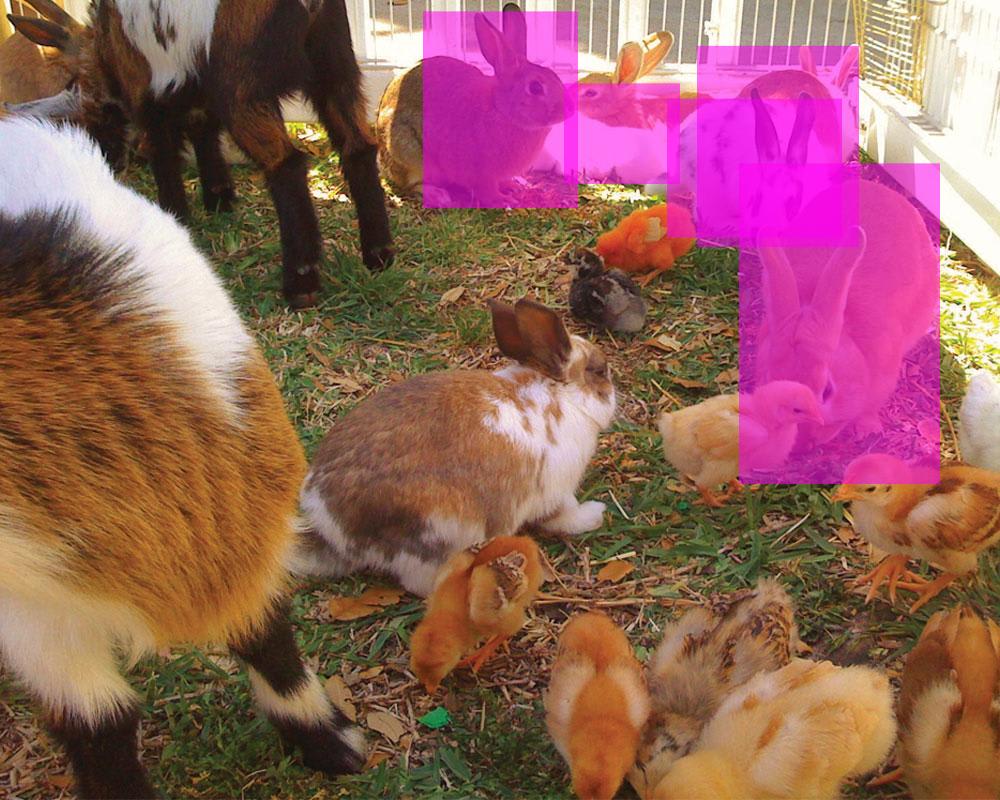"
},
"typeVersion": 1
},
{
"id": "c1806400-57da-4ef2-a50d-6ed211d5df29",
"name": "Sticky Note1",
"type": "n8n-nodes-base.stickyNote",
"position": [
-1520,
-480
],
"parameters": {
"color": 7,
"width": 600,
"height": 420,
"content": "## 1. Download Test Image\n[Read more about the HTTP node](https://docs.n8n.io/integrations/builtin/core-nodes/n8n-nodes-base.httprequest)\n\nAny compatible image will do ([see docs](https://ai.google.dev/gemini-api/docs/vision?lang=rest#technical-details-image)) but best if it isn't too busy or the subjects too obscure. Most importantly, you are able to retrieve the width and height as this is required for a later step."
},
"typeVersion": 1
},
{
"id": "3ae12a7c-a20f-4087-868e-b118cc09fa9a",
"name": "Sticky Note2",
"type": "n8n-nodes-base.stickyNote",
"position": [
-900,
-480
],
"parameters": {
"color": 7,
"width": 560,
"height": 540,
"content": "## 2. Use Prompt-Based Object Detection\n[Read more about the HTTP node](https://docs.n8n.io/integrations/builtin/core-nodes/n8n-nodes-base.httprequest)\n\nWe've had generalised object detection before ([see my other template using ResNet](https://n8n.io/workflows/2331-build-your-own-image-search-using-ai-object-detection-cdn-and-elasticsearch/)) but being able to prompt for what you're looking for is a very exciting proposition! Not only could this reduce the effort in post-detection filtering but also introduce contextual use-cases such as searching by \"emotion\", \"locality\", \"anomolies\" and many more!\n\nI found the the output json schema of `{ \"box_2d\": { \"type\": \"array\", ... } }` works best for Gemini to return coordinates. "
},
"typeVersion": 1
},
{
"id": "35673272-7207-41d1-985e-08032355846e",
"name": "Sticky Note3",
"type": "n8n-nodes-base.stickyNote",
"position": [
-320,
-400
],
"parameters": {
"color": 7,
"width": 520,
"height": 440,
"content": "## 3. Scale Coords to Fit Original Image\n[Read more about the Code node](https://docs.n8n.io/integrations/builtin/core-nodes/n8n-nodes-base.code/)\n\nAccording to the Gemini 2.0 overview on [how it calculates bounding boxes](https://ai.google.dev/gemini-api/docs/models/gemini-v2?_gl=1*187cb6v*_up*MQ..*_ga*MTU1ODkzMDc0Mi4xNzM0NDM0NDg2*_ga_P1DBVKWT6V*MTczNDQzNDQ4Ni4xLjAuMTczNDQzNDQ4Ni4wLjAuMjEzNzc5MjU0Ng..#bounding-box), we'll have to rescale the coordinate values as they are normalised to a 0-1000 range. Nothing a little code node can't help with!"
},
"typeVersion": 1
},
{
"id": "d3d4470d-0fe1-47fd-a892-10a19b6a6ecc",
"name": "Sticky Note4",
"type": "n8n-nodes-base.stickyNote",
"position": [
-660,
80
],
"parameters": {
"color": 5,
"width": 340,
"height": 100,
"content": "### Q. Why not use the Basic LLM node?\nAt time of writing, Langchain version does not recognise Gemini 2.0 to be a multimodal model."
},
"typeVersion": 1
},
{
"id": "5b2c1eff-6329-4d9a-9d3d-3a48fb3bd753",
"name": "Sticky Note5",
"type": "n8n-nodes-base.stickyNote",
"position": [
220,
-400
],
"parameters": {
"color": 7,
"width": 500,
"height": 440,
"content": "## 4. Draw!\n[Read more about the Edit Image node](https://docs.n8n.io/integrations/builtin/core-nodes/n8n-nodes-base.editimage/)\n\nFinally for this demonstration, we can use the \"Edit Image\" node to draw the bounding boxes on top of the original image. In my test run, I can see Gemini did miss out one of the bunnies but seeing how this is the experimental version we're playing with, it's pretty good to see it doesn't do too bad of a job."
},
"typeVersion": 1
},
{
"id": "965d791b-a183-46b0-b2a6-dd961d630c13",
"name": "Sticky Note6",
"type": "n8n-nodes-base.stickyNote",
"position": [
-1960,
-740
],
"parameters": {
"width": 420,
"height": 680,
"content": "## Try it out!\n### This n8n template demonstrates how to use Gemini 2.0's new Bounding Box detection capabilities your workflows.\n\nThe key difference being this enables prompt-based object detection for images which is pretty powerful for things like contextual search over an image. eg. \"Put a bounding box around all adults with children in this image\" or \"Put a bounding box around cars parked out of bounds of a parking space\".\n\n## How it works\n* An image is downloaded via the HTTP node and an \"Edit Image\" node is used to extract the file's width and height.\n* The image is then given to the Gemini 2.0 API to parse and return coordinates of the bounding box of the requested subjects. In this demo, we've asked for the AI to identify all bunnies.\n* The coordinates are then rescaled with the original image's width and height to correctl align them.\n* Finally to measure the accuracy of the object detection, we use the \"Edit Image\" node to draw the bounding boxes onto the original image.\n\n\n### Need Help?\nJoin the [Discord](https://discord.com/invite/XPKeKXeB7d) or ask in the [Forum](https://community.n8n.io/)!\n\nHappy Hacking!"
},
"typeVersion": 1
}
],
"pinData": {},
"connections": {
"Get Variables": {
"main": [
[
{
"node": "Scale Normalised Coords",
"type": "main",
"index": 0
}
]
]
},
"Get Image Info": {
"main": [
[
{
"node": "Gemini 2.0 Object Detection",
"type": "main",
"index": 0
}
]
]
},
"Get Test Image": {
"main": [
[
{
"node": "Get Image Info",
"type": "main",
"index": 0
}
]
]
},
"Draw Bounding Boxes": {
"main": [
[]
]
},
"Scale Normalised Coords": {
"main": [
[
{
"node": "Draw Bounding Boxes",
"type": "main",
"index": 0
}
]
]
},
"Gemini 2.0 Object Detection": {
"main": [
[
{
"node": "Get Variables",
"type": "main",
"index": 0
}
]
]
},
"When clicking ‘Test workflow’": {
"main": [
[
{
"node": "Get Test Image",
"type": "main",
"index": 0
}
]
]
}
}
}Workflow n8n image, détection d'objets : pour qui est ce workflow ?
Ce workflow s'adresse aux entreprises de taille moyenne à grande qui traitent régulièrement des images, telles que celles dans le secteur du e-commerce, de la logistique ou du marketing. Les équipes techniques ayant une connaissance de base des outils d'automatisation et de traitement d'images en tireront un grand bénéfice.
Workflow n8n image, détection d'objets : problème résolu
Ce workflow résout le problème de la lenteur et de l'inefficacité dans le traitement manuel des images. En automatisant la détection d'objets, il élimine les erreurs humaines potentielles et réduit le temps nécessaire pour analyser les images. Les utilisateurs peuvent ainsi obtenir des résultats rapides et fiables, ce qui leur permet de se concentrer sur des tâches à plus forte valeur ajoutée.
Workflow n8n image, détection d'objets : étapes du workflow
Étape 1 : Le workflow est déclenché manuellement par l'utilisateur.
- Étape 1 : Les variables nécessaires sont définies avec le nœud 'Get Variables'.
- Étape 2 : Une requête HTTP est envoyée pour récupérer l'image à analyser via le nœud 'Get Test Image'.
- Étape 3 : La détection d'objets est effectuée avec le nœud 'Gemini 2.0 Object Detection'.
- Étape 4 : Les coordonnées des objets détectés sont mises à l'échelle avec le nœud 'Scale Normalised Coords'.
- Étape 5 : Les boîtes englobantes sont dessinées sur l'image avec le nœud 'Draw Bounding Boxes'.
- Étape 6 : Les informations sur l'image sont récupérées avec le nœud 'Get Image Info'.
- Étape 7 : Plusieurs notes autocollantes sont ajoutées pour annoter les résultats.
Workflow n8n image, détection d'objets : guide de personnalisation
Pour personnaliser ce workflow, vous pouvez modifier l'URL de l'image dans le nœud 'Get Test Image' pour analyser différentes images. Les paramètres du nœud 'Gemini 2.0 Object Detection' peuvent également être ajustés pour affiner la détection d'objets selon vos besoins spécifiques. Si vous souhaitez ajouter d'autres annotations, vous pouvez créer des notes autocollantes supplémentaires en utilisant les nœuds 'Sticky Note'. Assurez-vous de tester le workflow après chaque modification pour garantir son bon fonctionnement.